> ## Documentation Index
> Fetch the complete documentation index at: https://docs.gbase.ai/llms.txt
> Use this file to discover all available pages before exploring further.
# ホーム画面
> ログイン後に表示されるホーム画面の構成と、各機能への入口をご説明します。
export const KnowledgeChatbot = () => {
useEffect(() => {
if (typeof window === "undefined" || typeof document === "undefined") {
return;
}
const CHATBOT_ID = "5c7ce716-1196-4b0c-92a2-12900ff360c8";
const HIDE_STYLE_ID = "gptbase-hide-style";
const WATCHER_FLAG = "__gbaseKnowledgeWatcherInstalled";
const DECOY_FLAG = "__gbaseViewportDecoyInstalled";
const DECOY_ATTR = "data-gbase-viewport-decoy";
const WIDGET_SELECTOR = "#gptbase-bubble-button, #gptbase-message-bubbles, #gptbase-bubble-window";
const onKnowledgeRoute = () => window.location.pathname.startsWith("/knowledge");
const ensureViewportDecoy = () => {
const head = document.head;
const metas = Array.prototype.slice.call(head.querySelectorAll('meta[name="viewport"]'));
if (metas.length === 0) return;
if (!metas[0].hasAttribute(DECOY_ATTR)) {
const decoy = document.createElement("meta");
decoy.setAttribute("name", "viewport");
decoy.setAttribute(DECOY_ATTR, "1");
decoy.setAttribute("content", metas[0].getAttribute("content") || "width=device-width, initial-scale=1");
head.insertBefore(decoy, metas[0]);
}
let keptDecoy = false;
Array.prototype.forEach.call(head.querySelectorAll('meta[name="viewport"]'), meta => {
const isDecoy = meta.hasAttribute(DECOY_ATTR);
const isPluginMeta = (meta.getAttribute("content") || "").includes("user-scalable=no");
if (isDecoy) {
if (keptDecoy) meta.remove(); else keptDecoy = true;
} else if (isPluginMeta) {
meta.remove();
}
});
};
const installViewportDecoyOnce = () => {
if (window[DECOY_FLAG]) return;
window[DECOY_FLAG] = true;
ensureViewportDecoy();
const observer = new MutationObserver(() => ensureViewportDecoy());
observer.observe(document.head, {
childList: true
});
};
const showWidget = () => {
const style = document.getElementById(HIDE_STYLE_ID);
if (style) style.remove();
};
const hideWidget = () => {
if (document.getElementById(HIDE_STYLE_ID)) return;
const style = document.createElement("style");
style.id = HIDE_STYLE_ID;
style.textContent = `${WIDGET_SELECTOR} { display: none !important; }`;
document.head.appendChild(style);
};
const syncVisibility = () => {
if (onKnowledgeRoute()) showWidget(); else hideWidget();
};
const injectPluginOnce = () => {
if (document.getElementById(CHATBOT_ID)) return;
window.gptbaseConfig = {
chatbotId: CHATBOT_ID,
baseUrl: "https://admin.gbase.ai",
apiBaseUrl: "https://admin.gbase.ai/api"
};
const script = document.createElement("script");
script.src = "https://gbase.ai/plugin/plugin.js";
script.id = CHATBOT_ID;
script.defer = true;
document.body.appendChild(script);
};
const installRouteWatcherOnce = () => {
if (window[WATCHER_FLAG]) return;
window[WATCHER_FLAG] = true;
const fire = () => window.requestAnimationFrame(syncVisibility);
["pushState", "replaceState"].forEach(method => {
const original = window.history[method];
window.history[method] = function patched(...args) {
const result = original.apply(this, args);
fire();
return result;
};
});
window.addEventListener("popstate", fire);
window.addEventListener("hashchange", fire);
};
try {
installViewportDecoyOnce();
injectPluginOnce();
installRouteWatcherOnce();
syncVisibility();
} catch (error) {
console.error("[KnowledgeChatbot] setup failed:", error);
}
}, []);
return null;
};
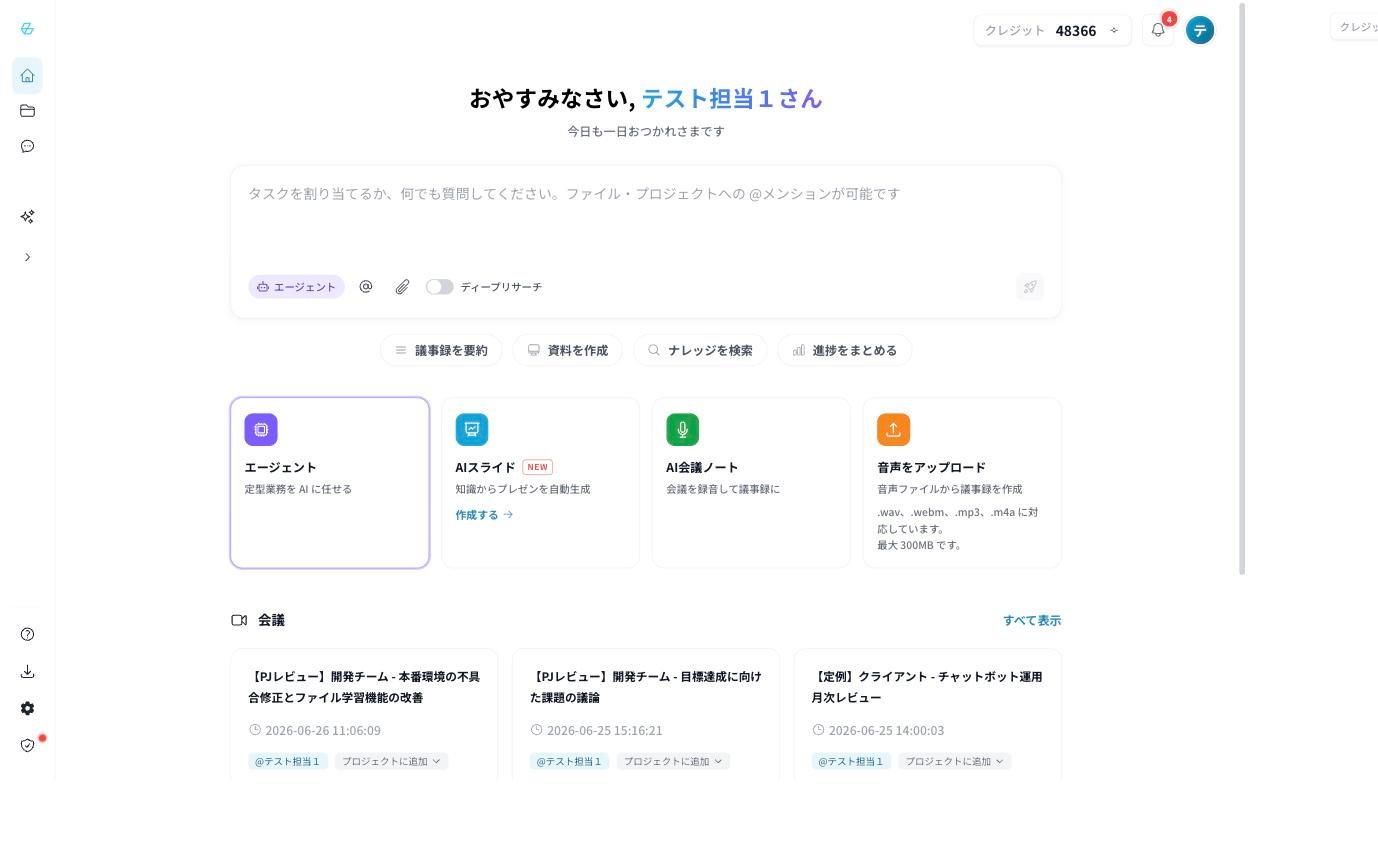
ログインすると、ホーム画面が表示されます。ホーム画面は GBase Knowledge のすべての機能への入口です。画面上部にはユーザー名入りの挨拶が表示され、時間帯によって「おはようございます」「こんにちは」「こんばんは」などに変わります。
 ## 1. 左サイドバー(メニュー)
サイドバーは通常アイコンのみの表示です。「>」をクリックすると展開され、メニュー名が表示されます。
| メニュー | 説明 |
| ------------- | ---------------------------------------------------------------------------- |
| ホーム | この画面(ホーム)に戻ります |
| プロジェクト | 情報を蓄積・共有する[プロジェクト](/knowledge/projects)の一覧を表示します |
| 履歴 | 過去のエージェントとのやり取り・生成結果の[履歴](/knowledge/agent-search)を表示します |
| スキル | AI の能力を拡張する[スキル](/knowledge/skills)を管理します |
| マニュアル | 本マニュアル(操作手順書)を開きます |
| GBase をダウンロード | デスクトップアプリ(GBase アプリ)をダウンロードします。会議の録音に利用でき、録音した音声は自動でアップロードされ、文字起こし・要約まで行われます |
| 設定 | アカウント情報・表示言語・外部サービス連携を行います(→ [設定](/knowledge/settings)) |
| 管理画面 | 管理者向けの管理コンソールを開きます(オーナー・管理者のみ表示。→ [管理画面](/knowledge/admin)) |
「近日公開の機能」に含まれる項目は、今後提供予定の機能です。
## 2. 中央:エージェントへの入力ボックス
画面中央の入力ボックスから、AI(エージェント)に質問やタスクを依頼できます。
* **何でも質問・依頼できます**:社内情報の検索、要約、文章作成などを自然な文章で入力します。
* **@メンション**:「@」を入力すると、特定のファイルやプロジェクトを参照先として指定できます。
* **添付**:クリップアイコンから、その場でファイルを添付して質問できます。
* **ディープリサーチ**:スイッチをオンにすると、より多くの情報源を調べる詳細な調査モードになります。
入力ボックスの下には、よく使うタスクのショートカットが並んでいます。クリックすると、該当のタスクをすぐに開始できます。
| ショートカット | 内容 |
| ------- | -------------------- |
| 議事録を要約 | 会議の議事録を要約します |
| 資料を作成 | スライドなどの資料作成を開始します |
| ナレッジを検索 | 社内ナレッジを検索します |
| 進捗をまとめる | プロジェクトなどの進捗を整理・要約します |
詳しい使い方は [エージェント](/knowledge/agent-search) をご覧ください。
## 3. 中央下:機能カード
よく使う機能を、ワンクリックで起動できます。
| カード | 機能 |
| --------- | -------------------------------------------------------- |
| エージェント | 定型業務を AI に任せます(→ [エージェント](/knowledge/agent-search)) |
| AI スライド | 知識からプレゼン資料を自動生成します(→ [AI スライド](/knowledge/ai-slides)) |
| AI 会議ノート | 会議を録音して議事録を作成します(→ [AI 会議ノート](/knowledge/meeting-notes)) |
| 音声をアップロード | 音声ファイルから議事録を作成します(.wav / .webm / .mp3 / .m4a、最大 300MB) |
## 4. 会議一覧・最近のプロジェクト
ホーム画面の下部には、最近の会議ノートが一覧表示されます。「すべて表示」から一覧画面に移動できるほか、各会議を選んで「プロジェクトに追加」することもできます。
会議一覧の下には「最近のプロジェクト」が表示され、よく使うプロジェクトへすぐに移動できます。
## 5. 右上:クレジット・通知
| 表示 | 説明 |
| ----- | ------------------------------------- |
| クレジット | AI 機能(文字起こし・要約・スライド生成など)の利用可能残量を表示します |
| 通知 | お知らせや処理完了の通知を表示します |
## 6. 表示言語の切り替え
画面の表示言語は、ユーザーごとに変更できます。
1. 左サイドバーの「設定」をクリックします。
2. 「一般」の「表示言語」ボタンをクリックします。
3. 「日本語」「English」「中文(简体)」「中文(繁體)」「한국어」などから選択します。選択するとすぐに切り替わります。
## 次のステップ
まずは情報を蓄積する入れ物となる [プロジェクト](/knowledge/projects) を確認しましょう。
## 1. 左サイドバー(メニュー)
サイドバーは通常アイコンのみの表示です。「>」をクリックすると展開され、メニュー名が表示されます。
| メニュー | 説明 |
| ------------- | ---------------------------------------------------------------------------- |
| ホーム | この画面(ホーム)に戻ります |
| プロジェクト | 情報を蓄積・共有する[プロジェクト](/knowledge/projects)の一覧を表示します |
| 履歴 | 過去のエージェントとのやり取り・生成結果の[履歴](/knowledge/agent-search)を表示します |
| スキル | AI の能力を拡張する[スキル](/knowledge/skills)を管理します |
| マニュアル | 本マニュアル(操作手順書)を開きます |
| GBase をダウンロード | デスクトップアプリ(GBase アプリ)をダウンロードします。会議の録音に利用でき、録音した音声は自動でアップロードされ、文字起こし・要約まで行われます |
| 設定 | アカウント情報・表示言語・外部サービス連携を行います(→ [設定](/knowledge/settings)) |
| 管理画面 | 管理者向けの管理コンソールを開きます(オーナー・管理者のみ表示。→ [管理画面](/knowledge/admin)) |
「近日公開の機能」に含まれる項目は、今後提供予定の機能です。
## 2. 中央:エージェントへの入力ボックス
画面中央の入力ボックスから、AI(エージェント)に質問やタスクを依頼できます。
* **何でも質問・依頼できます**:社内情報の検索、要約、文章作成などを自然な文章で入力します。
* **@メンション**:「@」を入力すると、特定のファイルやプロジェクトを参照先として指定できます。
* **添付**:クリップアイコンから、その場でファイルを添付して質問できます。
* **ディープリサーチ**:スイッチをオンにすると、より多くの情報源を調べる詳細な調査モードになります。
入力ボックスの下には、よく使うタスクのショートカットが並んでいます。クリックすると、該当のタスクをすぐに開始できます。
| ショートカット | 内容 |
| ------- | -------------------- |
| 議事録を要約 | 会議の議事録を要約します |
| 資料を作成 | スライドなどの資料作成を開始します |
| ナレッジを検索 | 社内ナレッジを検索します |
| 進捗をまとめる | プロジェクトなどの進捗を整理・要約します |
詳しい使い方は [エージェント](/knowledge/agent-search) をご覧ください。
## 3. 中央下:機能カード
よく使う機能を、ワンクリックで起動できます。
| カード | 機能 |
| --------- | -------------------------------------------------------- |
| エージェント | 定型業務を AI に任せます(→ [エージェント](/knowledge/agent-search)) |
| AI スライド | 知識からプレゼン資料を自動生成します(→ [AI スライド](/knowledge/ai-slides)) |
| AI 会議ノート | 会議を録音して議事録を作成します(→ [AI 会議ノート](/knowledge/meeting-notes)) |
| 音声をアップロード | 音声ファイルから議事録を作成します(.wav / .webm / .mp3 / .m4a、最大 300MB) |
## 4. 会議一覧・最近のプロジェクト
ホーム画面の下部には、最近の会議ノートが一覧表示されます。「すべて表示」から一覧画面に移動できるほか、各会議を選んで「プロジェクトに追加」することもできます。
会議一覧の下には「最近のプロジェクト」が表示され、よく使うプロジェクトへすぐに移動できます。
## 5. 右上:クレジット・通知
| 表示 | 説明 |
| ----- | ------------------------------------- |
| クレジット | AI 機能(文字起こし・要約・スライド生成など)の利用可能残量を表示します |
| 通知 | お知らせや処理完了の通知を表示します |
## 6. 表示言語の切り替え
画面の表示言語は、ユーザーごとに変更できます。
1. 左サイドバーの「設定」をクリックします。
2. 「一般」の「表示言語」ボタンをクリックします。
3. 「日本語」「English」「中文(简体)」「中文(繁體)」「한국어」などから選択します。選択するとすぐに切り替わります。
## 次のステップ
まずは情報を蓄積する入れ物となる [プロジェクト](/knowledge/projects) を確認しましょう。