> ## Documentation Index
> Fetch the complete documentation index at: https://docs.gbase.ai/llms.txt
> Use this file to discover all available pages before exploring further.
# GBase アプリ(デスクトップ録音)
> PC にインストールして会議を録音し、自動で文字起こし・要約まで行うデスクトップアプリです。
export const KnowledgeChatbot = () => {
useEffect(() => {
if (typeof window === "undefined" || typeof document === "undefined") {
return;
}
const CHATBOT_ID = "5c7ce716-1196-4b0c-92a2-12900ff360c8";
const HIDE_STYLE_ID = "gptbase-hide-style";
const WATCHER_FLAG = "__gbaseKnowledgeWatcherInstalled";
const DECOY_FLAG = "__gbaseViewportDecoyInstalled";
const DECOY_ATTR = "data-gbase-viewport-decoy";
const WIDGET_SELECTOR = "#gptbase-bubble-button, #gptbase-message-bubbles, #gptbase-bubble-window";
const onKnowledgeRoute = () => window.location.pathname.startsWith("/knowledge");
const ensureViewportDecoy = () => {
const head = document.head;
const metas = Array.prototype.slice.call(head.querySelectorAll('meta[name="viewport"]'));
if (metas.length === 0) return;
if (!metas[0].hasAttribute(DECOY_ATTR)) {
const decoy = document.createElement("meta");
decoy.setAttribute("name", "viewport");
decoy.setAttribute(DECOY_ATTR, "1");
decoy.setAttribute("content", metas[0].getAttribute("content") || "width=device-width, initial-scale=1");
head.insertBefore(decoy, metas[0]);
}
let keptDecoy = false;
Array.prototype.forEach.call(head.querySelectorAll('meta[name="viewport"]'), meta => {
const isDecoy = meta.hasAttribute(DECOY_ATTR);
const isPluginMeta = (meta.getAttribute("content") || "").includes("user-scalable=no");
if (isDecoy) {
if (keptDecoy) meta.remove(); else keptDecoy = true;
} else if (isPluginMeta) {
meta.remove();
}
});
};
const installViewportDecoyOnce = () => {
if (window[DECOY_FLAG]) return;
window[DECOY_FLAG] = true;
ensureViewportDecoy();
const observer = new MutationObserver(() => ensureViewportDecoy());
observer.observe(document.head, {
childList: true
});
};
const showWidget = () => {
const style = document.getElementById(HIDE_STYLE_ID);
if (style) style.remove();
};
const hideWidget = () => {
if (document.getElementById(HIDE_STYLE_ID)) return;
const style = document.createElement("style");
style.id = HIDE_STYLE_ID;
style.textContent = `${WIDGET_SELECTOR} { display: none !important; }`;
document.head.appendChild(style);
};
const syncVisibility = () => {
if (onKnowledgeRoute()) showWidget(); else hideWidget();
};
const injectPluginOnce = () => {
if (document.getElementById(CHATBOT_ID)) return;
window.gptbaseConfig = {
chatbotId: CHATBOT_ID,
baseUrl: "https://admin.gbase.ai",
apiBaseUrl: "https://admin.gbase.ai/api"
};
const script = document.createElement("script");
script.src = "https://gbase.ai/plugin/plugin.js";
script.id = CHATBOT_ID;
script.defer = true;
document.body.appendChild(script);
};
const installRouteWatcherOnce = () => {
if (window[WATCHER_FLAG]) return;
window[WATCHER_FLAG] = true;
const fire = () => window.requestAnimationFrame(syncVisibility);
["pushState", "replaceState"].forEach(method => {
const original = window.history[method];
window.history[method] = function patched(...args) {
const result = original.apply(this, args);
fire();
return result;
};
});
window.addEventListener("popstate", fire);
window.addEventListener("hashchange", fire);
};
try {
installViewportDecoyOnce();
injectPluginOnce();
installRouteWatcherOnce();
syncVisibility();
} catch (error) {
console.error("[KnowledgeChatbot] setup failed:", error);
}
}, []);
return null;
};
GBase アプリは、対面会議やオンライン会議をワンクリックで録音し、録音した音声を自動で GBase にアップロードして、文字起こし・要約([AI 会議ノート](/knowledge/meeting-notes))までつなげるデスクトップ録音ツールです。
## 1. ダウンロードとインストール
1. ブラウザで GBase(hub)にログインし、左サイドバーの「GBase をダウンロード」をクリックします。
2. ご利用の OS(Mac / Windows)に合わせたインストーラをダウンロードします。
3. **Mac の場合**:ダウンロードした `.dmg` ファイルを開き、表示された GBase アイコンを「アプリケーション」フォルダにドラッグします。
4. インストールした GBase アプリを起動します。
## 2. ログイン
初回起動時に、GBase アカウント(hub と同じメールアドレス・パスワード)でサインインします。一度ログインすると、次回以降は自動でログインされます。
ログイン状態は、後述の「設定」画面の「アカウント」欄で確認でき、「ログアウト」もここから行えます。
## 3. 音声ソースを設定する
録音を始める前に、どの音を録音するかを設定します。
1. 録音コンソール(後述)の歯車アイコン(設定)をクリックします。
2. 「音声ソース」で、録音する音を選びます。
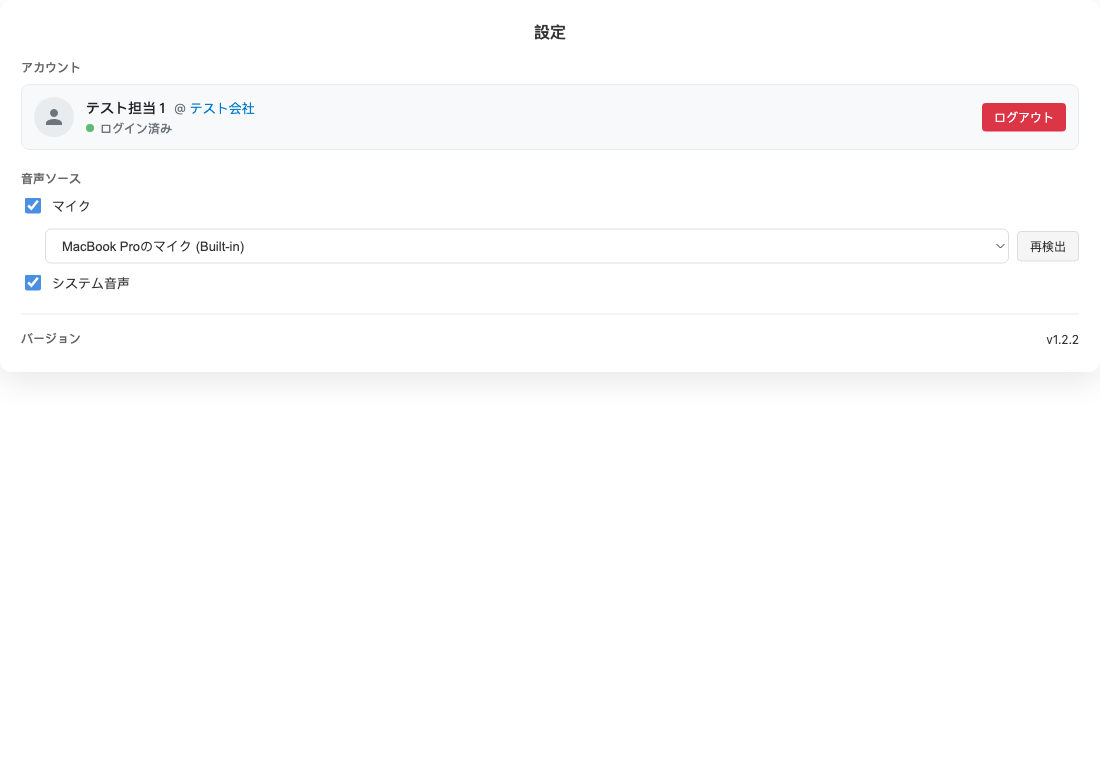 | 音声ソース | 録音される音 |
| ------ | ------------------------------------------------------------------- |
| マイク | マイクから入力される音(自分の声・対面会議の声など)。使用するマイク端末を選べます。端末が見つからない場合は「再検出」をクリックします |
| システム音声 | PC 内で再生される音(オンライン会議の参加者の声・動画の音声など) |
オンライン会議では「マイク」と「システム音声」の両方をオンにすると、自分の声と他の参加者の声の両方を録音できます。
## 4. 録音する
録音は、画面に表示される録音コンソール(操作バー)から行います。
| 音声ソース | 録音される音 |
| ------ | ------------------------------------------------------------------- |
| マイク | マイクから入力される音(自分の声・対面会議の声など)。使用するマイク端末を選べます。端末が見つからない場合は「再検出」をクリックします |
| システム音声 | PC 内で再生される音(オンライン会議の参加者の声・動画の音声など) |
オンライン会議では「マイク」と「システム音声」の両方をオンにすると、自分の声と他の参加者の声の両方を録音できます。
## 4. 録音する
録音は、画面に表示される録音コンソール(操作バー)から行います。
 | アイコン | 機能 |
| ------- | ----------------- |
| マイク/▶ | 録音を開始します |
| 00:00 | 録音の経過時間を表示します |
| 歯車(設定) | 音声ソースなどの設定画面を開きます |
| 矢印(最小化) | 操作バーを小さく折りたたみます |
録音を開始すると、操作バーが録音中の表示に変わります。
| アイコン | 機能 |
| ------- | ----------------- |
| マイク/▶ | 録音を開始します |
| 00:00 | 録音の経過時間を表示します |
| 歯車(設定) | 音声ソースなどの設定画面を開きます |
| 矢印(最小化) | 操作バーを小さく折りたたみます |
録音を開始すると、操作バーが録音中の表示に変わります。
 | ボタン | 機能 |
| ---- | ------------------------- |
| 停止 | 録音を終了します |
| 一時停止 | 録音を一時的に止めます(もう一度押すと再開します) |
## 5. 録音後(自動アップロードと会議ノート)
「停止」をクリックすると、録音した音声は**自動で GBase にアップロード**され、文字起こし・要約が行われます。アプリ側で名前を付けたり保存先を選んだりする操作は不要です。
処理が完了すると、hub の「会議」一覧([ホーム画面](/knowledge/home))や該当プロジェクトに、会議ノートとして表示されます。内容の確認・編集方法は [AI 会議ノート](/knowledge/meeting-notes) をご覧ください。
システム音声やマイクの録音には、OS(Mac / Windows)側でマイク・画面収録などのアクセス許可が必要な場合があります。初回録音時に許可を求められたら、許可してください。
## 次のステップ
AI の能力を業務に合わせて拡張する方法は [スキル](/knowledge/skills) をご覧ください。
| ボタン | 機能 |
| ---- | ------------------------- |
| 停止 | 録音を終了します |
| 一時停止 | 録音を一時的に止めます(もう一度押すと再開します) |
## 5. 録音後(自動アップロードと会議ノート)
「停止」をクリックすると、録音した音声は**自動で GBase にアップロード**され、文字起こし・要約が行われます。アプリ側で名前を付けたり保存先を選んだりする操作は不要です。
処理が完了すると、hub の「会議」一覧([ホーム画面](/knowledge/home))や該当プロジェクトに、会議ノートとして表示されます。内容の確認・編集方法は [AI 会議ノート](/knowledge/meeting-notes) をご覧ください。
システム音声やマイクの録音には、OS(Mac / Windows)側でマイク・画面収録などのアクセス許可が必要な場合があります。初回録音時に許可を求められたら、許可してください。
## 次のステップ
AI の能力を業務に合わせて拡張する方法は [スキル](/knowledge/skills) をご覧ください。