> ## Documentation Index
> Fetch the complete documentation index at: https://docs.gbase.ai/llms.txt
> Use this file to discover all available pages before exploring further.
# AI スライド
> テーマや会議の内容を伝えるだけで、ビジネス用のスライド(PPT)を自動で作成します。
export const KnowledgeChatbot = () => {
useEffect(() => {
if (typeof window === "undefined" || typeof document === "undefined") {
return;
}
const CHATBOT_ID = "5c7ce716-1196-4b0c-92a2-12900ff360c8";
const HIDE_STYLE_ID = "gptbase-hide-style";
const WATCHER_FLAG = "__gbaseKnowledgeWatcherInstalled";
const DECOY_FLAG = "__gbaseViewportDecoyInstalled";
const DECOY_ATTR = "data-gbase-viewport-decoy";
const WIDGET_SELECTOR = "#gptbase-bubble-button, #gptbase-message-bubbles, #gptbase-bubble-window";
const onKnowledgeRoute = () => window.location.pathname.startsWith("/knowledge");
const ensureViewportDecoy = () => {
const head = document.head;
const metas = Array.prototype.slice.call(head.querySelectorAll('meta[name="viewport"]'));
if (metas.length === 0) return;
if (!metas[0].hasAttribute(DECOY_ATTR)) {
const decoy = document.createElement("meta");
decoy.setAttribute("name", "viewport");
decoy.setAttribute(DECOY_ATTR, "1");
decoy.setAttribute("content", metas[0].getAttribute("content") || "width=device-width, initial-scale=1");
head.insertBefore(decoy, metas[0]);
}
let keptDecoy = false;
Array.prototype.forEach.call(head.querySelectorAll('meta[name="viewport"]'), meta => {
const isDecoy = meta.hasAttribute(DECOY_ATTR);
const isPluginMeta = (meta.getAttribute("content") || "").includes("user-scalable=no");
if (isDecoy) {
if (keptDecoy) meta.remove(); else keptDecoy = true;
} else if (isPluginMeta) {
meta.remove();
}
});
};
const installViewportDecoyOnce = () => {
if (window[DECOY_FLAG]) return;
window[DECOY_FLAG] = true;
ensureViewportDecoy();
const observer = new MutationObserver(() => ensureViewportDecoy());
observer.observe(document.head, {
childList: true
});
};
const showWidget = () => {
const style = document.getElementById(HIDE_STYLE_ID);
if (style) style.remove();
};
const hideWidget = () => {
if (document.getElementById(HIDE_STYLE_ID)) return;
const style = document.createElement("style");
style.id = HIDE_STYLE_ID;
style.textContent = `${WIDGET_SELECTOR} { display: none !important; }`;
document.head.appendChild(style);
};
const syncVisibility = () => {
if (onKnowledgeRoute()) showWidget(); else hideWidget();
};
const injectPluginOnce = () => {
if (document.getElementById(CHATBOT_ID)) return;
window.gptbaseConfig = {
chatbotId: CHATBOT_ID,
baseUrl: "https://admin.gbase.ai",
apiBaseUrl: "https://admin.gbase.ai/api"
};
const script = document.createElement("script");
script.src = "https://gbase.ai/plugin/plugin.js";
script.id = CHATBOT_ID;
script.defer = true;
document.body.appendChild(script);
};
const installRouteWatcherOnce = () => {
if (window[WATCHER_FLAG]) return;
window[WATCHER_FLAG] = true;
const fire = () => window.requestAnimationFrame(syncVisibility);
["pushState", "replaceState"].forEach(method => {
const original = window.history[method];
window.history[method] = function patched(...args) {
const result = original.apply(this, args);
fire();
return result;
};
});
window.addEventListener("popstate", fire);
window.addEventListener("hashchange", fire);
};
try {
installViewportDecoyOnce();
injectPluginOnce();
installRouteWatcherOnce();
syncVisibility();
} catch (error) {
console.error("[KnowledgeChatbot] setup failed:", error);
}
}, []);
return null;
};
AI スライドは、テーマや資料の内容を伝えるだけで、ビジネス用のスライド(PPT)を自動で作成する機能です。次のような入口から利用できます。
* ホーム画面の「AIスライド」ボタンから、テーマを入力して作成する
* エージェントの回答画面の「PPTを生成」ボタンから、回答内容をそのまま資料化する(本ページでご紹介する方法)
* 会議ノートの内容をもとに資料を作成する
### 1. エージェントの回答から PPT を生成する
[エージェント](/knowledge/agent-search)に質問した後、回答画面の右上に「PPTを生成」ボタンが表示されます。
1. 回答画面右上の「PPTを生成」をクリックします。
2. AI スライドの画面に切り替わり、回答内容が自動で引き継がれます。
3. AI が内容を確認し、生成の設定確認が表示されます。
### 2. 設定の確認
「設定確認」カードでは、生成の条件を確認・変更できます。
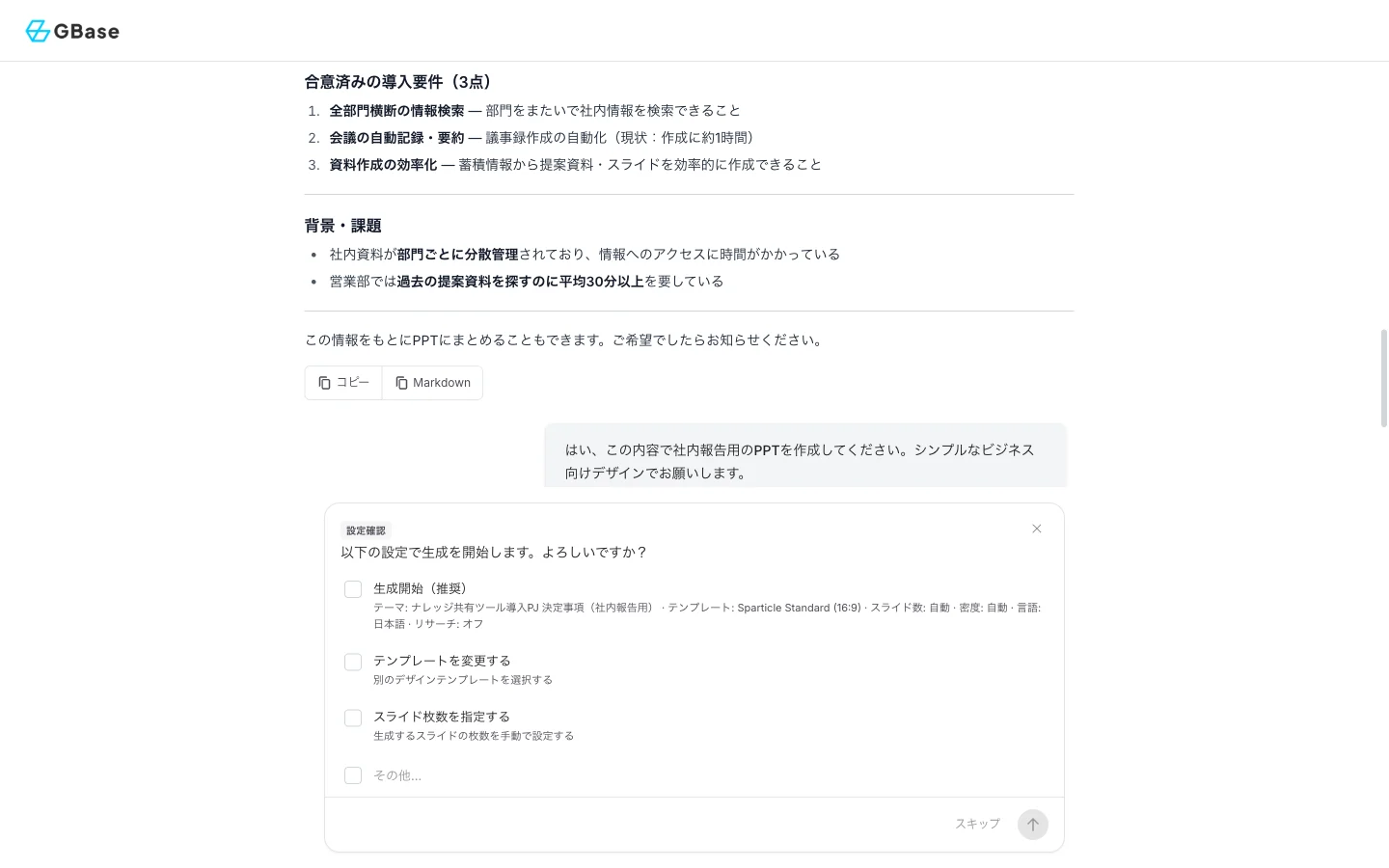 * 「生成開始(推奨)」:表示された設定(テンプレート・スライド数・言語など)でそのまま生成を開始します。
* 「テンプレートを変更する」:デザインテンプレートを選び直します。
* 「スライド枚数を指定する」:枚数を手動で設定します。
そのまま進める場合は「生成開始(推奨)」をクリックします。
### 3. アウトラインの確認・編集
まず、スライド全体の構成(アウトライン)が生成されます。
* 「生成開始(推奨)」:表示された設定(テンプレート・スライド数・言語など)でそのまま生成を開始します。
* 「テンプレートを変更する」:デザインテンプレートを選び直します。
* 「スライド枚数を指定する」:枚数を手動で設定します。
そのまま進める場合は「生成開始(推奨)」をクリックします。
### 3. アウトラインの確認・編集
まず、スライド全体の構成(アウトライン)が生成されます。
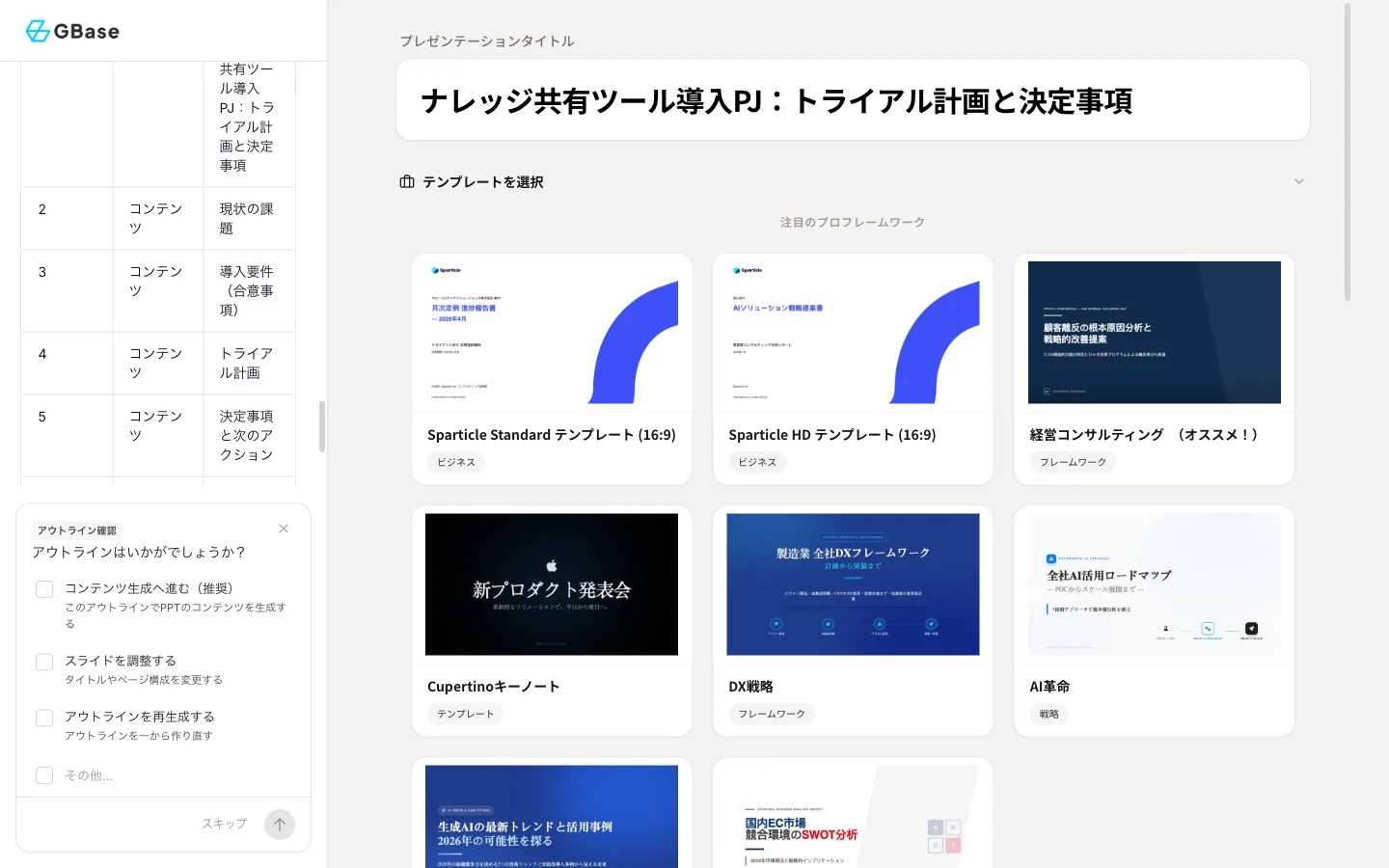 画面右側では以下の操作ができます。
* プレゼンテーションタイトルの編集
* テンプレートの変更(Sparticle Standard、経営コンサルティング など)
* スライドの長さ(枚数)、テキスト密度、PPT 言語の変更
* 各スライドのタイトル・内容の編集、並び替え、追加・削除
内容に問題がなければ「コンテンツ生成へ進む(推奨)」をクリックします。
### 4. スライドの生成と編集
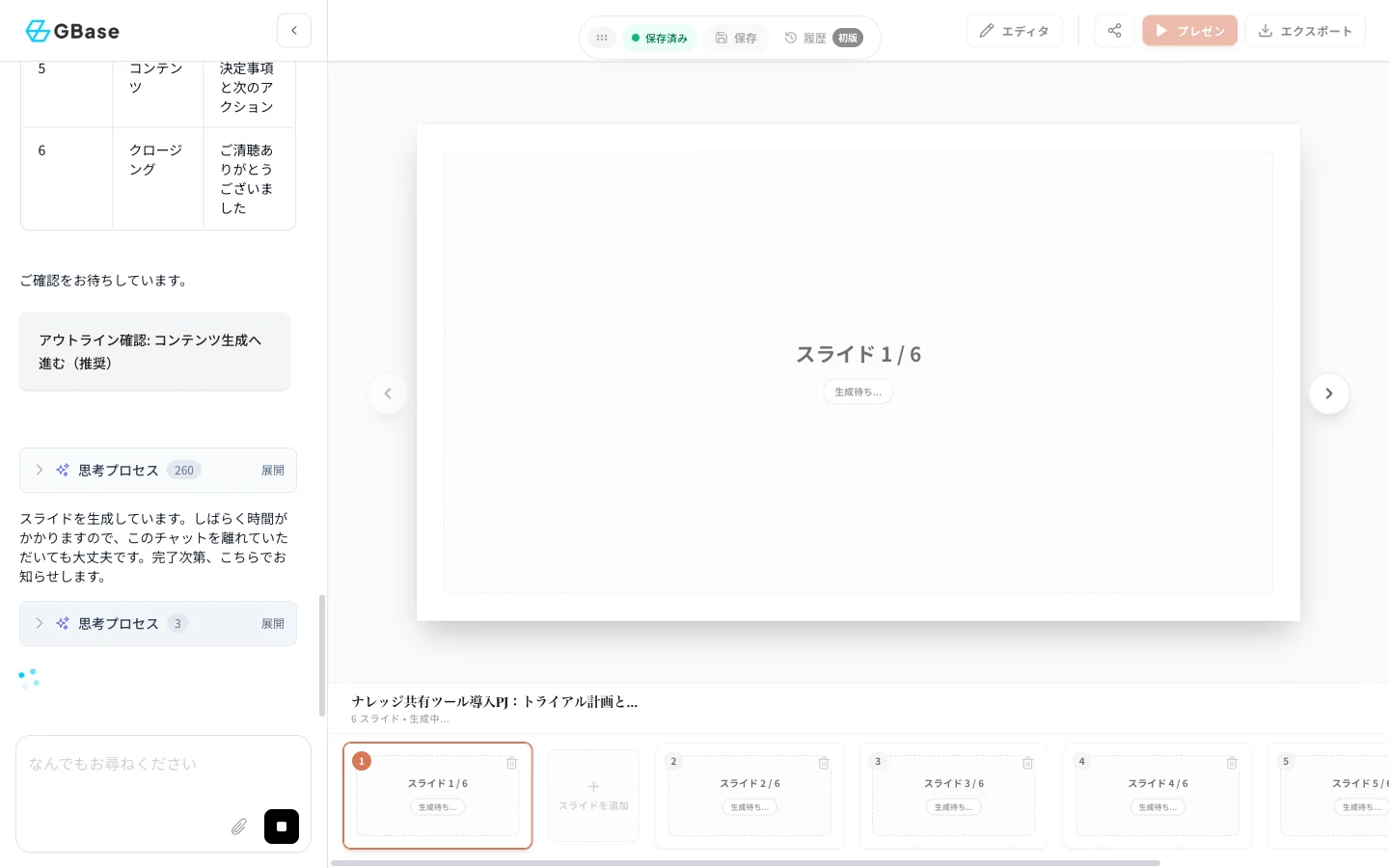
スライドが 1 枚ずつ自動で生成されます。生成には数分かかりますが、画面を離れても処理は継続されます。
画面右側では以下の操作ができます。
* プレゼンテーションタイトルの編集
* テンプレートの変更(Sparticle Standard、経営コンサルティング など)
* スライドの長さ(枚数)、テキスト密度、PPT 言語の変更
* 各スライドのタイトル・内容の編集、並び替え、追加・削除
内容に問題がなければ「コンテンツ生成へ進む(推奨)」をクリックします。
### 4. スライドの生成と編集
スライドが 1 枚ずつ自動で生成されます。生成には数分かかりますが、画面を離れても処理は継続されます。
 生成が完了すると、画面上部のメニューから以下の操作ができます。
| ボタン | 機能 |
| ------ | --------------------------- |
| エディタ | スライドの内容を直接編集します |
| プレゼン | 全画面でプレゼンテーションを開始します |
| エクスポート | PowerPoint・PDF 形式でダウンロードします |
| 共有 | 共有リンクを発行します |
生成が完了すると、画面上部のメニューから以下の操作ができます。
| ボタン | 機能 |
| ------ | --------------------------- |
| エディタ | スライドの内容を直接編集します |
| プレゼン | 全画面でプレゼンテーションを開始します |
| エクスポート | PowerPoint・PDF 形式でダウンロードします |
| 共有 | 共有リンクを発行します |
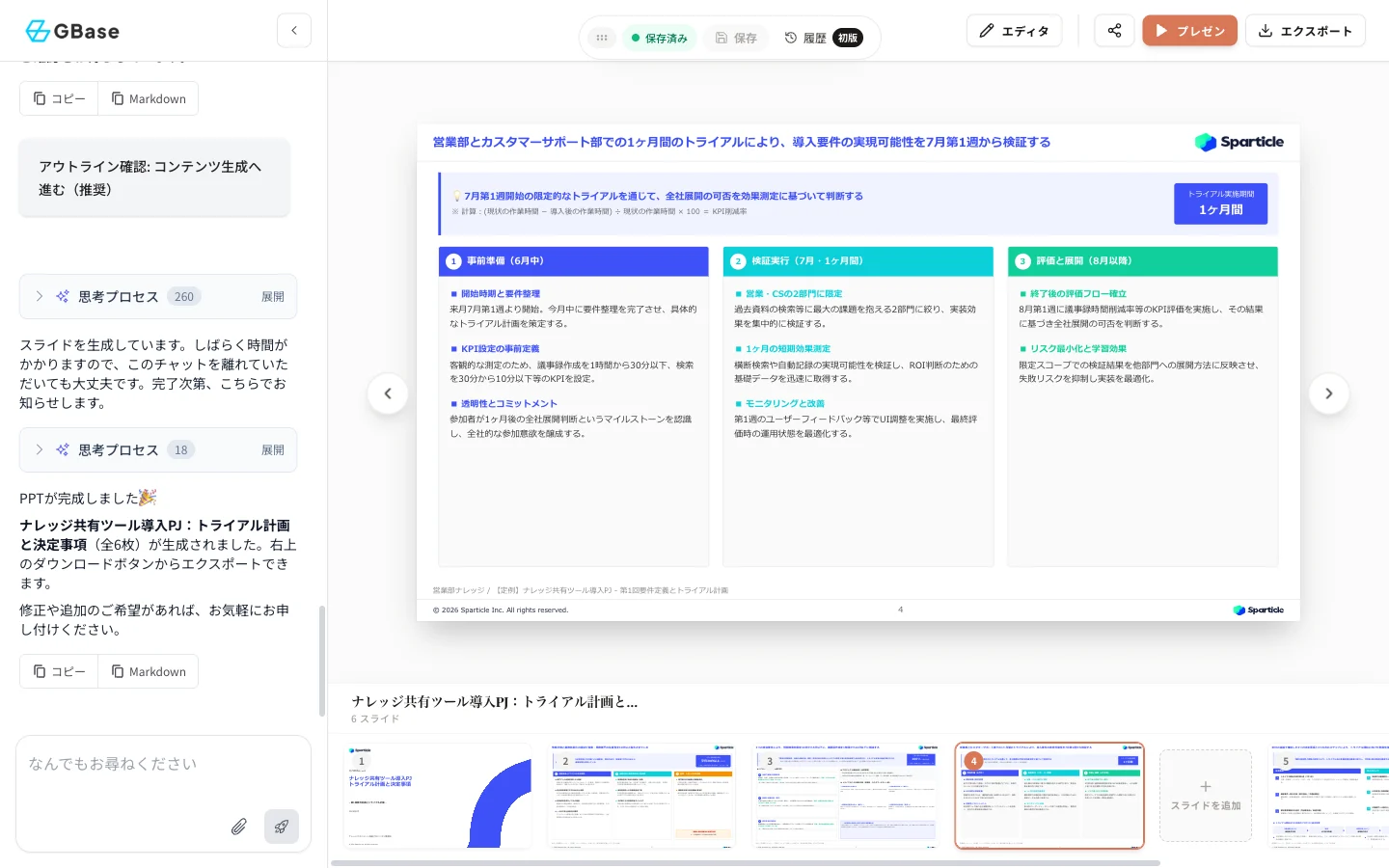 「エクスポート」をクリックすると、PowerPoint・PDF などの形式を選択してダウンロードできます。
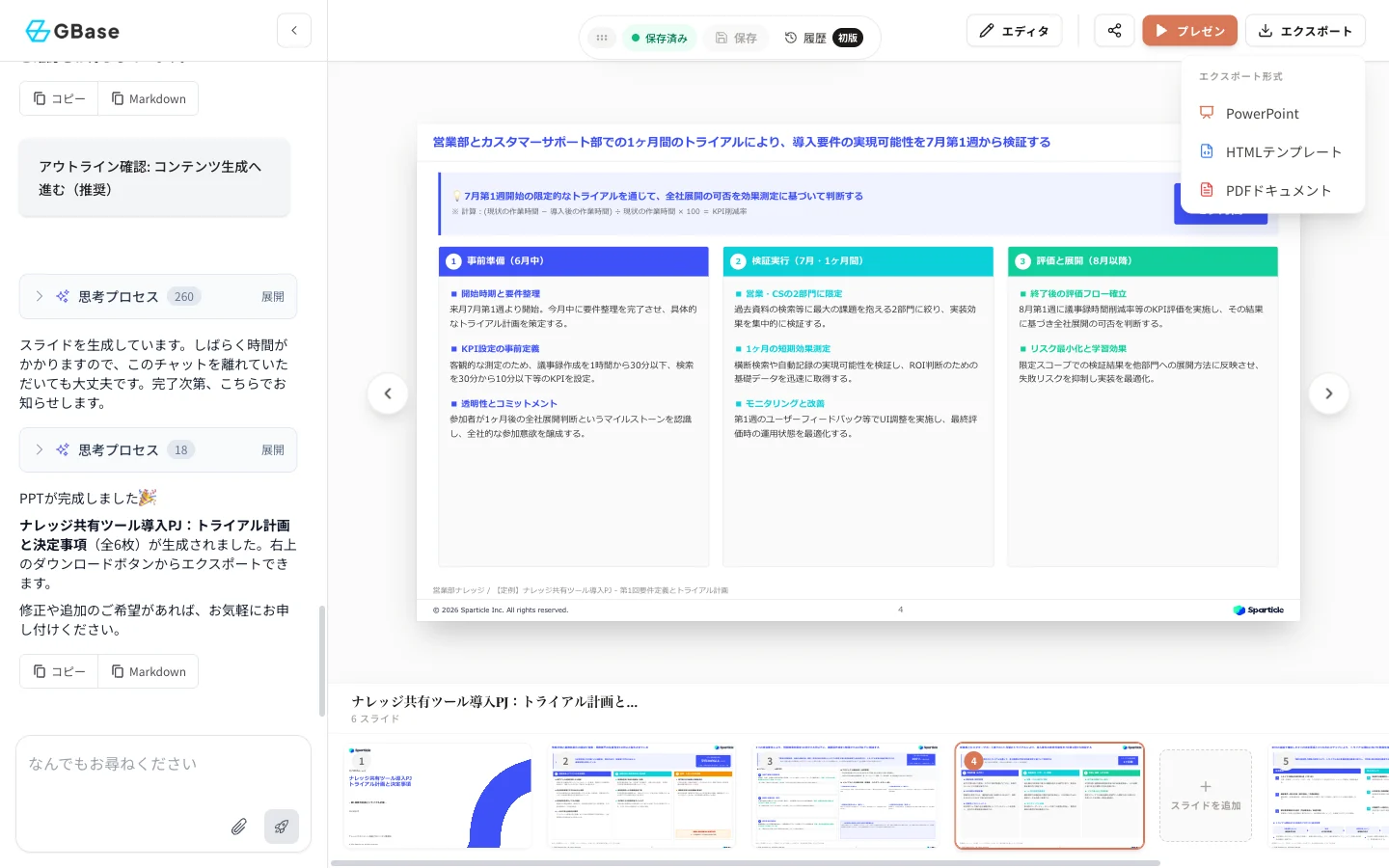 生成されたスライドには、元になった会議記録などの出所が自動で記載されます。社内資料としての信頼性を保ちながら、資料作成の時間を大幅に短縮できます。
### 次のステップ
会議の音声から文字起こし・要約を作成する方法は [AI 会議ノート](/knowledge/meeting-notes) をご覧ください。
生成されたスライドには、元になった会議記録などの出所が自動で記載されます。社内資料としての信頼性を保ちながら、資料作成の時間を大幅に短縮できます。
### 次のステップ
会議の音声から文字起こし・要約を作成する方法は [AI 会議ノート](/knowledge/meeting-notes) をご覧ください。