> ## Documentation Index
> Fetch the complete documentation index at: https://docs.gbase.ai/llms.txt
> Use this file to discover all available pages before exploring further.
# エージェント(社内情報の検索・質問)
> 蓄積された社内情報を横断的に検索し、出典つきで質問に回答する AI アシスタントです。
export const KnowledgeChatbot = () => {
useEffect(() => {
if (typeof window === "undefined" || typeof document === "undefined") {
return;
}
const CHATBOT_ID = "5c7ce716-1196-4b0c-92a2-12900ff360c8";
const HIDE_STYLE_ID = "gptbase-hide-style";
const WATCHER_FLAG = "__gbaseKnowledgeWatcherInstalled";
const DECOY_FLAG = "__gbaseViewportDecoyInstalled";
const DECOY_ATTR = "data-gbase-viewport-decoy";
const WIDGET_SELECTOR = "#gptbase-bubble-button, #gptbase-message-bubbles, #gptbase-bubble-window";
const onKnowledgeRoute = () => window.location.pathname.startsWith("/knowledge");
const ensureViewportDecoy = () => {
const head = document.head;
const metas = Array.prototype.slice.call(head.querySelectorAll('meta[name="viewport"]'));
if (metas.length === 0) return;
if (!metas[0].hasAttribute(DECOY_ATTR)) {
const decoy = document.createElement("meta");
decoy.setAttribute("name", "viewport");
decoy.setAttribute(DECOY_ATTR, "1");
decoy.setAttribute("content", metas[0].getAttribute("content") || "width=device-width, initial-scale=1");
head.insertBefore(decoy, metas[0]);
}
let keptDecoy = false;
Array.prototype.forEach.call(head.querySelectorAll('meta[name="viewport"]'), meta => {
const isDecoy = meta.hasAttribute(DECOY_ATTR);
const isPluginMeta = (meta.getAttribute("content") || "").includes("user-scalable=no");
if (isDecoy) {
if (keptDecoy) meta.remove(); else keptDecoy = true;
} else if (isPluginMeta) {
meta.remove();
}
});
};
const installViewportDecoyOnce = () => {
if (window[DECOY_FLAG]) return;
window[DECOY_FLAG] = true;
ensureViewportDecoy();
const observer = new MutationObserver(() => ensureViewportDecoy());
observer.observe(document.head, {
childList: true
});
};
const showWidget = () => {
const style = document.getElementById(HIDE_STYLE_ID);
if (style) style.remove();
};
const hideWidget = () => {
if (document.getElementById(HIDE_STYLE_ID)) return;
const style = document.createElement("style");
style.id = HIDE_STYLE_ID;
style.textContent = `${WIDGET_SELECTOR} { display: none !important; }`;
document.head.appendChild(style);
};
const syncVisibility = () => {
if (onKnowledgeRoute()) showWidget(); else hideWidget();
};
const injectPluginOnce = () => {
if (document.getElementById(CHATBOT_ID)) return;
window.gptbaseConfig = {
chatbotId: CHATBOT_ID,
baseUrl: "https://admin.gbase.ai",
apiBaseUrl: "https://admin.gbase.ai/api"
};
const script = document.createElement("script");
script.src = "https://gbase.ai/plugin/plugin.js";
script.id = CHATBOT_ID;
script.defer = true;
document.body.appendChild(script);
};
const installRouteWatcherOnce = () => {
if (window[WATCHER_FLAG]) return;
window[WATCHER_FLAG] = true;
const fire = () => window.requestAnimationFrame(syncVisibility);
["pushState", "replaceState"].forEach(method => {
const original = window.history[method];
window.history[method] = function patched(...args) {
const result = original.apply(this, args);
fire();
return result;
};
});
window.addEventListener("popstate", fire);
window.addEventListener("hashchange", fire);
};
try {
installViewportDecoyOnce();
injectPluginOnce();
installRouteWatcherOnce();
syncVisibility();
} catch (error) {
console.error("[KnowledgeChatbot] setup failed:", error);
}
}, []);
return null;
};
エージェントは、蓄積された社内情報(会議記録・ファイル・プロジェクト)を横断的に検索し、質問に回答する AI アシスタントです。「あの会議で何が決まったか」「過去の提案資料はどこにあるか」といった質問に、出典つきで回答します。
社内情報だけでなく、Web 上の外部情報もあわせて検索できます。社内に蓄積された知見と、最新の公開情報を組み合わせた回答を得られます。
### 1. 質問する
1. ホーム画面の入力ボックスに質問を入力します。
* 例:「ナレッジ共有ツール導入プロジェクトのトライアルは、いつから・どの部門で開始する予定ですか?」
2. Enter キーを押すか、送信ボタンをクリックします。
入力ボックスでは以下の機能も利用できます。
| 機能 | 説明 |
| ------------ | ----------------------------------- |
| @メンション | 「@」を入力すると、特定のファイル・プロジェクトを指定して質問できます |
| コンテキストを追加 | 参照させたい資料を明示的に追加します |
| ディープリサーチ | Web 上の外部情報も含め、より深く調査するモードに切り替えます |
| 添付(クリップアイコン) | ファイルを添付して質問できます |
### 2. 回答を確認する
AI は社内の関連情報(必要に応じて Web 上の外部情報も)を自動で検索し、回答を生成します。
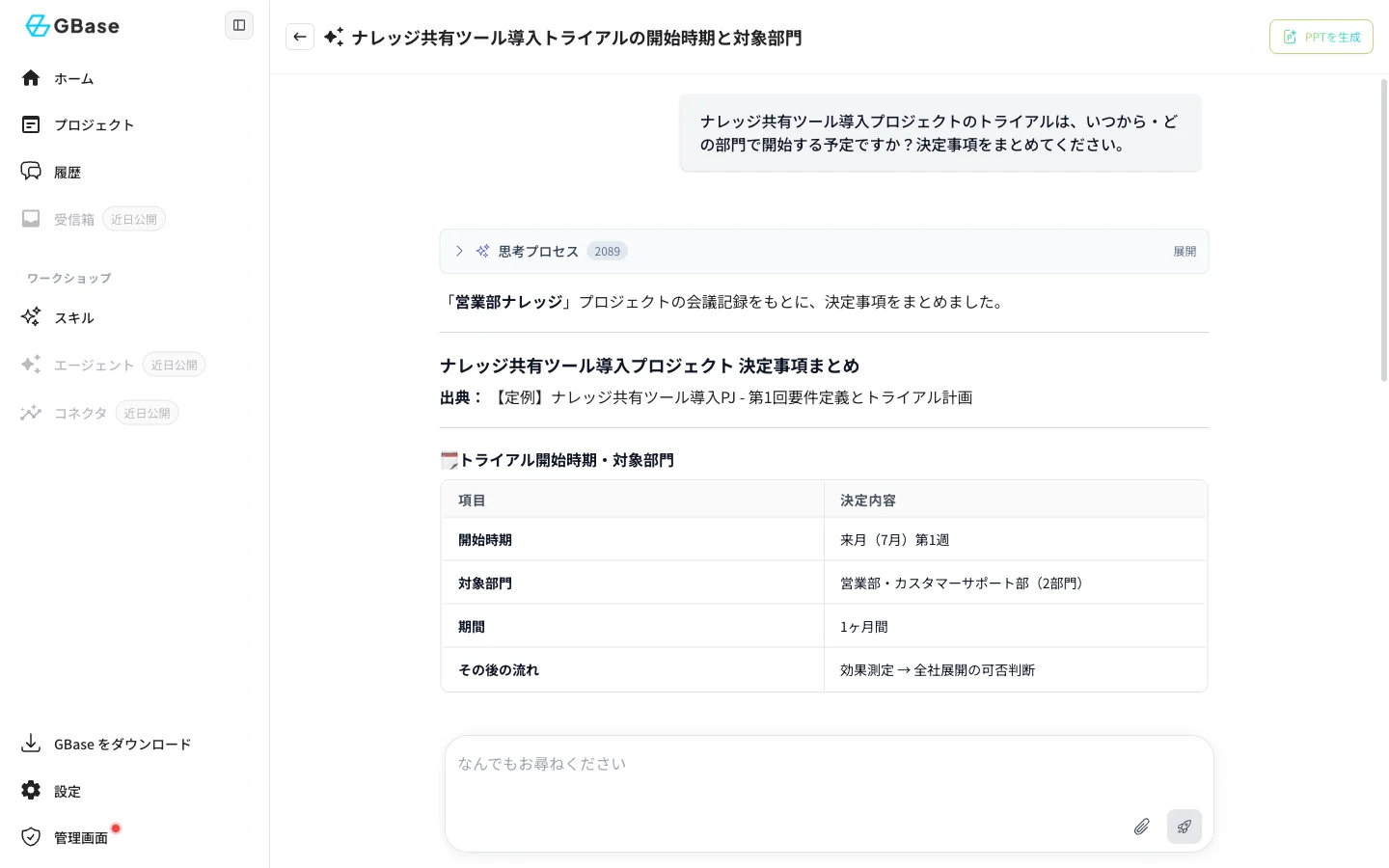 * 「思考プロセス」をクリックすると、AI がどの資料を参照したかを確認できます。
* 回答には「出典」として参照元の会議記録・資料名が明記されます。
* 決定事項などは表形式で整理されます。
### 3. 回答を活用する
回答の下部のボタンから、回答内容をそのまま業務に活用できます。
| ボタン | 機能 |
| ------------ | ------------------------------------------------------ |
| コピー | 回答をクリップボードにコピーします |
| Markdown | Markdown 形式でコピー・保存します |
| ノートに保存 | プロジェクトのノートとして保存します |
| PPTを生成(画面右上) | 回答内容からスライドを自動作成します([AI スライド](/knowledge/ai-slides) 参照) |
### 4. 過去のやり取りを確認する
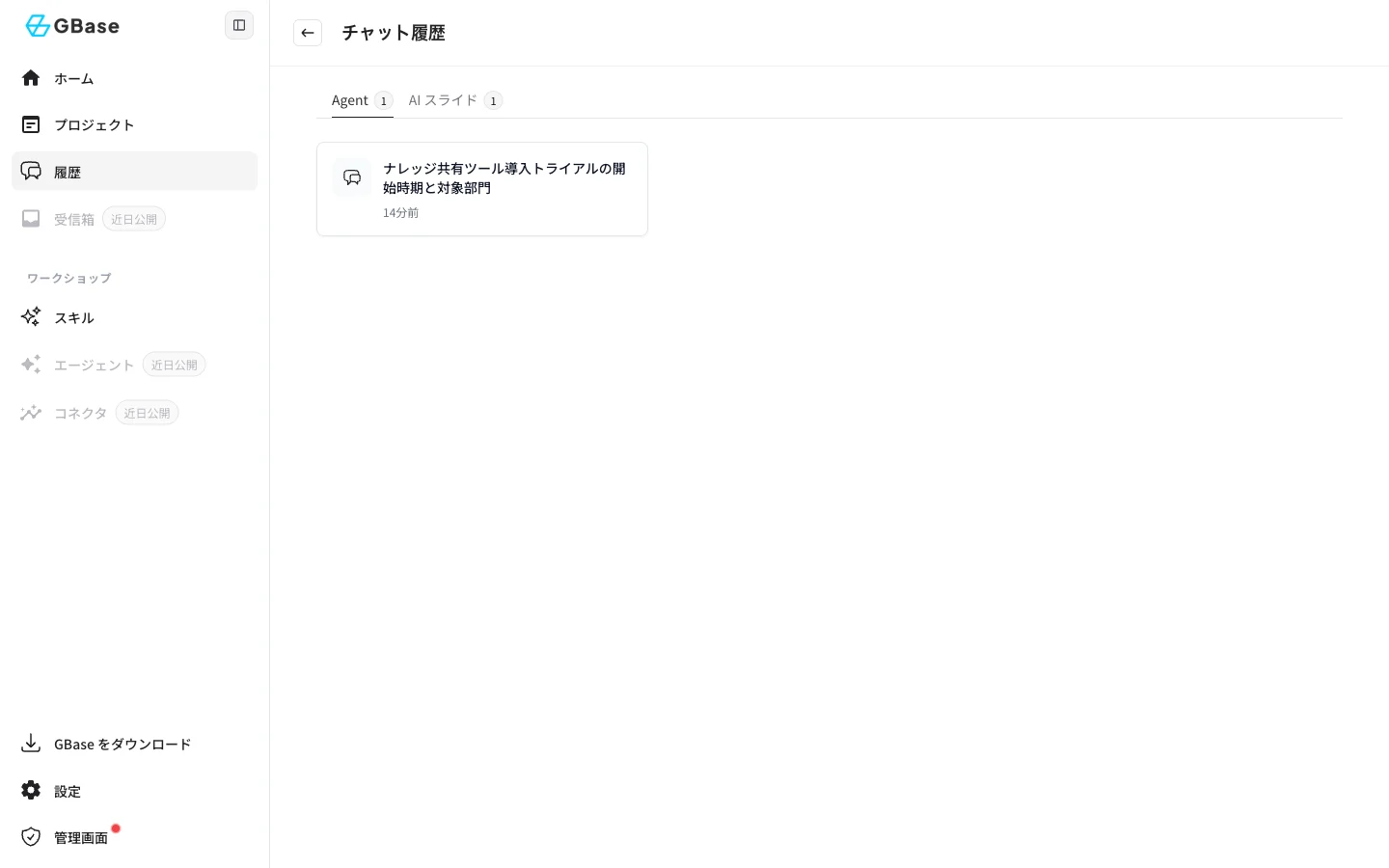
左サイドバーの「履歴」をクリックすると、過去の質問(Agent)と作成したスライド(AI スライド)の一覧を確認できます。項目をクリックすると、当時の内容をそのまま確認できます。
* 「思考プロセス」をクリックすると、AI がどの資料を参照したかを確認できます。
* 回答には「出典」として参照元の会議記録・資料名が明記されます。
* 決定事項などは表形式で整理されます。
### 3. 回答を活用する
回答の下部のボタンから、回答内容をそのまま業務に活用できます。
| ボタン | 機能 |
| ------------ | ------------------------------------------------------ |
| コピー | 回答をクリップボードにコピーします |
| Markdown | Markdown 形式でコピー・保存します |
| ノートに保存 | プロジェクトのノートとして保存します |
| PPTを生成(画面右上) | 回答内容からスライドを自動作成します([AI スライド](/knowledge/ai-slides) 参照) |
### 4. 過去のやり取りを確認する
左サイドバーの「履歴」をクリックすると、過去の質問(Agent)と作成したスライド(AI スライド)の一覧を確認できます。項目をクリックすると、当時の内容をそのまま確認できます。
 ### 次のステップ
検索・収集した内容から、そのまま報告用スライドを作成できます。[AI スライド](/knowledge/ai-slides) に進んでください。
### 次のステップ
検索・収集した内容から、そのまま報告用スライドを作成できます。[AI スライド](/knowledge/ai-slides) に進んでください。